Dec 16, 2025

4 min read

Working with PDFs in a React Native app isn't some niche, edge-case feature anymore. It’s a core function for tons of apps out there. Whether you're generating an invoice, showing a signed contract, or letting users share a report, how your app handles documents says a lot about its quality and professionalism.
In the mobile world, PDFs are the gold standard for official documents. Think financial reports, legal agreements, or even simple concert tickets—users just expect this stuff to work flawlessly. A clunky or unreliable PDF experience is a surefire way to frustrate people and make your app feel amateur.
This is where getting the right tools and techniques down in React Native is so critical. This guide is a practical, end-to-end roadmap for building out solid PDF features. We’re going to skip the high-level theory and get right into the real-world problems developers hit, like weird cross-platform quirks and performance bottlenecks.
When you get right down to it, successfully adding PDF capabilities to your app means mastering three key areas:
The need for these skills is only growing. The global market for React Native app development was valued at USD 325 million in 2024 and is expected to hit USD 499 million by 2031. A big reason for that growth is efficiency, with developers seeing up to 90% code reusability between iOS and Android. Nailing common features like PDF handling just makes the whole ecosystem more valuable.
A great PDF experience should feel invisible. The document just shows up, scrolls like butter, and shares without a second thought. The moment a user has to stop and think about the process, you've already lost.
And for apps that handle sensitive information, you might need to go a step further. Understanding this guide to digitally signing PDFs can be indispensable for adding that extra layer of security and trust.
Ultimately, my goal here is to help you make PDF handling a strength in your React Native projects, not a recurring headache.
Picking the right library is your first big decision when adding PDF features to your app, and it’s a critical one. The React Native ecosystem has some great options, but they are definitely not one-size-fits-all. The library you go with will shape everything from development time and performance to the final user experience.
The most basic split you'll find is between libraries for viewing existing PDFs and those for generating new ones from scratch. Some tools are masters of one, while a few try to handle both. Let's dig into the factors that really matter when you're making this call.
Before you even think about installing a package, take a step back and look at your project's needs.
This decision tree can help you visualize that initial choice, mapping your app's needs to the right kind of tool.
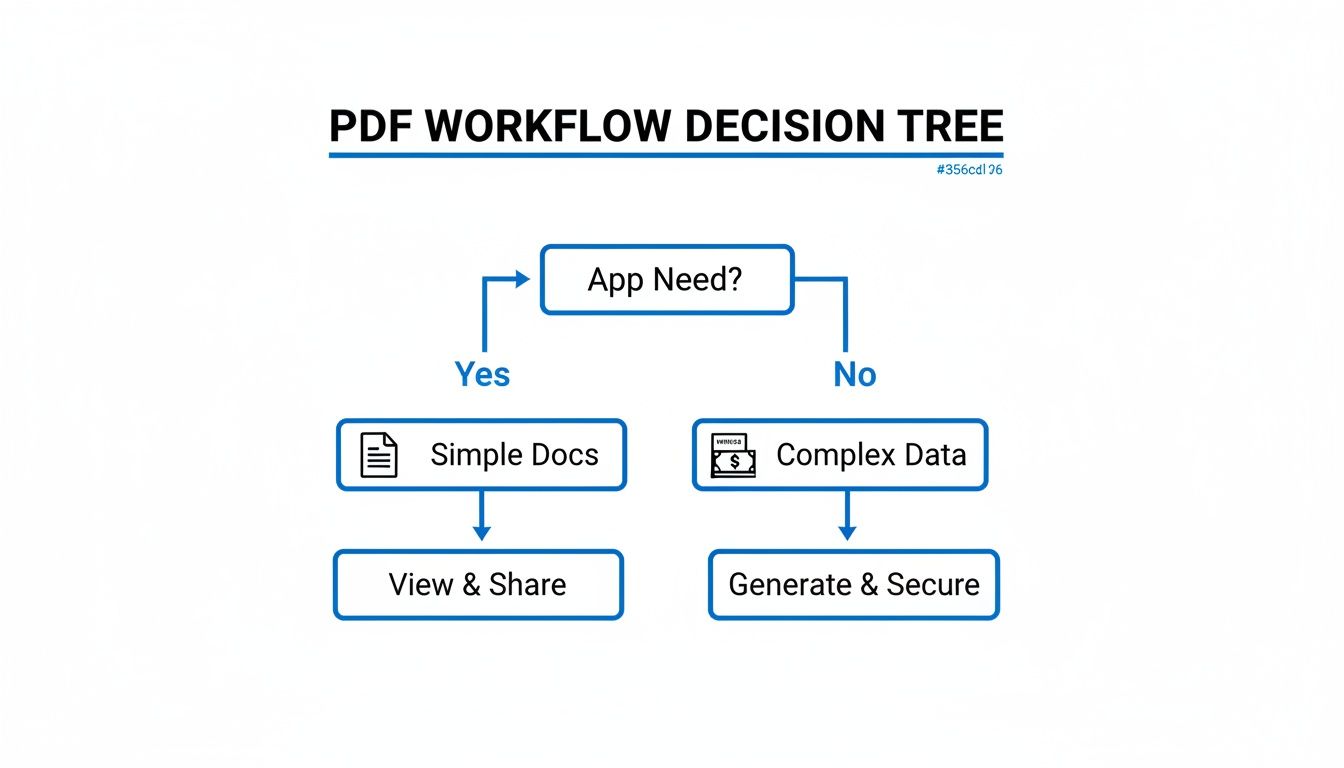
As you can see, the more complex your data and security needs, the more you'll lean towards robust generation libraries over simple viewers.
When you start looking around, two libraries pop up again and again as solid, reliable choices: react-native-pdf for viewing and react-native-html-to-pdf for generation. They take very different approaches to solving the PDF puzzle and are great benchmarks for what's out there.
react-native-pdf is the gold standard for rendering PDF documents inside your app. It hooks directly into the native rendering engines (PDFKit on iOS, AndroidPdfViewer on Android), which makes it incredibly fast and efficient. It can handle massive files and supports features like zooming, password protection, and smooth scrolling. The catch? It requires linking native dependencies, so it’s best for bare React Native projects.
On the other side of the coin, react-native-html-to-pdf is a fantastic choice for creating documents on the fly. It lets you use standard HTML and CSS to design your layout, which is a massive win for developers. You can easily whip up an invoice or generate a concert ticket using data straight from your app's state. It also relies on native print services, so you'll be doing some native setup here, too.
The real challenge isn't just making a PDF. It's making it look good without tearing your hair out. Converting complex CSS into a print-friendly format is where you'll run into the trickiest bugs and layout headaches.
To really nail down your choice, it helps to see the main players compared directly. Often, the best fit comes down to balancing ease of use, performance, and whether a library plays nice with your project's setup.
This table breaks down the key features of the leading libraries, helping you pick the right tool for viewing, generating, or even modifying PDFs in your app.
| Library | Primary Use Case | Expo Go Compatible | Native Dependencies | Key Feature |
|---|---|---|---|---|
react-native-pdf |
Viewing PDFs | No | Yes (iOS/Android) | High-performance rendering of large/complex files. |
react-native-html-to-pdf |
Generating PDFs | No | Yes (iOS/Android) | Creates PDFs from HTML strings, great for dynamic content. |
react-native-view-shot |
Generating PDFs | Yes | No (mostly JS) | Captures a React component as an image or PDF. |
pdf-lib |
Manipulating PDFs | Yes | No (pure JS) | Excellent for modifying existing PDFs (e.g., adding text). |
As you can see, the need for native dependencies is the biggest differentiator. It's the classic trade-off between power and simplicity.
The "Expo question" is a common roadblock. If you’re building and testing with Expo Go, you're pretty much limited to pure JavaScript libraries like pdf-lib or react-native-view-shot. These are great for simple tasks but just don't have the muscle or advanced features of their native-backed cousins. For a deeper look at this, our Expo React Native tutorial offers more context on managing project dependencies.
If your app needs serious PDF power, you'll almost certainly need a library with native modules. That means you're either working with a bare React Native project from the start or using Expo's EAS Build service to create a custom development build. This path unlocks full native performance but adds another layer of complexity to your setup.
This trade-off is at the heart of the React Native experience. The framework's biggest strength is its code reusability—you can share around 90% of your code between platforms, which can slash development time by up to 50%. One UK insurer, for instance, built a full MVP in just six weeks by taking advantage of this efficiency.
Ultimately, your choice comes down to one thing: aligning a library's capabilities with your project's specific needs, constraints, and workflow.
Sometimes, just displaying a static, pre-made PDF isn't enough. When you need to create dynamic documents on the fly—think invoices, event tickets, or custom reports—generating them directly from your app's data is the way to go. This approach lets you build a React Native PDF using your existing components and state, ensuring every document is up-to-date and tailored to the user.
Let's walk through how to do this with react-native-html-to-pdf, a really popular library for this exact task. Its biggest advantage is that it plays to your strengths as a web developer. If you know HTML and CSS, you already know how to design a great-looking PDF.

First things first, we need to get the library installed and wired up. Because react-native-html-to-pdf does the heavy lifting with native code, the setup is a little more involved than a pure JavaScript package.
Here’s the drill:
ios directory and install the pods.
cd ios && pod installAndroidManifest.xml and add the WRITE_EXTERNAL_STORAGE permission.
The core idea here is brilliantly simple: you create an HTML string that represents your document, and the library handles the conversion to a PDF file. This means you can use all the familiar HTML tags and CSS you already know to structure and style your document.
Let's say you're building an app for a tech conference and need to generate a simple ticket for attendees. The ticket should show their name, a QR code, and some event details.
You can start by creating a function that takes the attendee's data and spits out a complete HTML string.
const createTicketHTML = (attendee) => {
return <html> <head> <style> body { font-family: 'Helvetica Neue', 'Helvetica', Arial, sans-serif; padding: 20px; } .ticket { border: 1px solid #ccc; padding: 15px; text-align: center; } h1 { font-size: 24px; margin-bottom: 5px; } p { font-size: 16px; color: #555; } img { width: 150px; height: 150px; margin-top: 15px; } </style> </head> <body> <div class="ticket"> <h1>React Native Conf 2024</h1> <p>Attendee: <strong>${attendee.name}</strong></p> <p>Seat: ${attendee.seat}</p> <img src="data:image/png;base64,${attendee.qrCodeBase64}" /> </div> </body> </html>;
};
This function is your PDF engine. It takes raw data and merges it with an HTML template to create a personalized document every single time.
Now, let's plug this into a React Native component. We'll import the library, set up some sample data, and create a function that kicks off the whole process.
The createPDF function is where the magic happens. It calls our HTML generator, sets a few options, and then hands everything over to the library's convert method.
import React from 'react'; import { View, Button, Alert } from 'react-native'; import RNHTMLtoPDF from 'react-native-html-to-pdf';
// Assuming createTicketHTML is defined above or imported
const TicketGenerator = () => { const createPDF = async () => { const attendeeData = { name: 'Jane Doe', seat: 'A12', qrCodeBase64: 'iVBORw0KGgoAAAANSUhEUgAAAAUA...', // A valid base64 string };
const htmlContent = createTicketHTML(attendeeData);

let options = {
  html: htmlContent,
  fileName: `Ticket-JaneDoe`,
  directory: 'Documents',
};

try {
  const file = await RNHTMLtoPDF.convert(options);
  console.log(file.filePath);
  Alert.alert('Success', `PDF created at: ${file.filePath}`);
} catch (error) {
  console.error('Failed to create PDF:', error);
  Alert.alert('Error', 'Could not create the PDF.');
}
};
return ( <View> <Button title="Generate My Ticket" onPress={createPDF} /> </View> ); };
export default TicketGenerator;
When a user taps that button, our code generates the HTML, passes it off to the native module, and saves the final PDF to the device's documents folder. The filePath it returns is super important—you'll need it later to open or share the file.
Pro Tip: One of the most common snags I see is with CSS compatibility. The native PDF engines don't support every modern CSS property. To avoid headaches, stick to well-supported basics like
font-size,color,margin,padding, and flexbox for layouts.
While the basics are pretty straightforward, you'll inevitably run into a few hurdles in a real-world app. Getting that generated PDF to look just right takes some finessing.
Here are a few tips I've picked up to sidestep common issues:
<img> tag's src attribute..ttf or .otf font files in your native project's assets folder. Then, you can reference them in your CSS using @font-face. This setup is platform-specific, so be sure to check the library's docs for both iOS and Android.So you’ve generated a PDF—great. Now, how do you actually show it to the user? The last thing you want is a clunky, slow-loading viewer that makes an otherwise slick app feel broken. This is where embedding a smooth, native-feeling viewer becomes non-negotiable for a solid React Native PDF workflow.

For this job, my go-to library is react-native-pdf. It's a powerhouse that uses native rendering for buttery-smooth performance on both iOS and Android. It handles all the essentials right out of the box, from pinch-to-zoom and page navigation to loading documents from a remote server or right from the device's storage.
Getting react-native-pdf up and running is pretty straightforward. But since it taps into native code, this is one for bare React Native projects or custom Expo development builds. Managed Expo workflow won't cut it here.
After you install the package and link the native bits (pod install is your friend on iOS), the next step is to wrap it in a dedicated viewer component. The heart of the library is the <Pdf /> component, and it just needs a source object to know what to display.
Let's start with a basic setup for pulling a PDF from a remote URL.
import React from 'react'; import { StyleSheet, View, ActivityIndicator } from 'react-native'; import Pdf from 'react-native-pdf';
const PDFViewer = ({ pdfUrl }) => { const source = { uri: pdfUrl, cache: true };
return (
    <View style={styles.container}>
        <Pdf
            source={source}
            onLoadComplete={(numberOfPages, filePath) => {
                console.log(`Number of pages: ${numberOfPages}`);
            }}
            onError={(error) => {
                console.log(error);
            }}
            style={styles.pdf}
        />
    </View>
);
};
const styles = StyleSheet.create({ container: { flex: 1, justifyContent: 'flex-start', alignItems: 'center', }, pdf: { flex: 1, width: '100%', height: '100%', } });
export default PDFViewer;
See that cache: true property? It’s a tiny detail with a huge impact. It tells the library to store the remote PDF locally after the first download, so every subsequent view is practically instant.
In the real world, your PDFs won't all live in the same place. The source prop is built for this flexibility, handling different scenarios with just a minor tweak.
uri key is all you need. Perfect for documents living on a server.filePath, you can pop it right into the viewer by prefixing the path with file://.require('./assets/manual.pdf') does the trick.One of the most common mistakes I see developers make is forgetting to handle loading and error states. Always show a loading spinner (
ActivityIndicator) while the PDF is being fetched and a clear error message if something goes wrong. It’s a small touch that makes your app feel professional and responsive instead of just frozen.
The fact that we have such reliable libraries is a sign of a mature ecosystem. The job market reflects this, too. As of 2025, a quick search on LinkedIn shows 6,413 job postings for React Native developers in the US alone. This framework is a dominant force, and the demand for developers who can master these workflows is huge.
A truly great viewer does more than just display a document—it gives users the controls they expect. react-native-pdf comes packed with props to level up the user experience.
horizontal={true}: Flips the scroll direction, letting users swipe through pages like a book.enablePaging={true}: This is fantastic for document-style viewing. It snaps the view to the top of each page as the user scrolls.password="your-password": Got a protected PDF? This prop lets the component decrypt and display it seamlessly.onPageChanged={(page, numberOfPages) => { ... }}: This callback fires every time the user turns a page. It’s perfect for building a custom "Page X of Y" counter in your UI.Implementing these features makes your in-app viewer feel just as powerful as a dedicated PDF reader. This is just one piece of the puzzle, of course. For a deeper dive, check out our guide on the best React Native PDF viewer libraries out there. By putting these tools together, you can create a truly polished and high-performing document experience right inside your app.
Once you've got the basics of generating and viewing a PDF in React Native down, it's time to start thinking about the user experience. This is where advanced techniques come in. It’s less about just creating the document and more about how your app behaves in the process, especially when you're dealing with big or complex files that can really bog down a device.
The number one performance killer I see is generating a hefty PDF right on the main JavaScript thread. If you're building a multi-page report packed with data and images, this can easily lock up the UI for several seconds. Your app will feel frozen and totally unresponsive. The fix? Offload that heavy lifting to a background thread.
Running intensive tasks in the background is just standard practice in mobile development. While React Native doesn’t have a super straightforward built-in multithreading solution like native platforms do, libraries such as react-native-thread can get the job done by executing JavaScript code off the main thread.
By shifting your PDF generation logic into a separate worker, you keep the user interface buttery smooth and interactive. This approach is absolutely essential for apps that need to spit out detailed invoices, financial statements, or any document that has to pull and crunch a lot of data before rendering. The user can keep tapping around the app while their report is being built, and they'll just get a notification when the file is ready to go.
A responsive UI is non-negotiable. The moment a button press leads to a frozen screen, user trust plummets. Offloading a task as heavy as PDF generation isn't just a performance tweak; it's a fundamental part of building a reliable, professional application.
Making the PDF is only half the battle. You also have to manage it properly. That means saving the file somewhere accessible, letting users share it, and cleaning up old files so you don't hog their storage.
A solid file management strategy usually involves a few key things:
react-native-fs to save documents to standard locations, like the app's Documents or Cache directory.To handle sharing, React Native's built-in Share API is the perfect tool. It pops open the native sharing dialog on both iOS and Android, allowing users to send their PDF to email, messaging apps, or cloud storage with a single tap.
import { Share } from 'react-native';
const sharePDF = async (filePath) => {
try {
await Share.share({
title: 'Share Your Document',
url: file://${filePath}, // Crucial to add the file:// protocol
});
} catch (error) {
console.error('Error sharing PDF:', error.message);
}
};
This simple function opens up a world of interoperability, making your app a genuinely useful tool in your user's day-to-day workflow.
Finally, you can't read or write files without the user's permission. Modern versions of Android and iOS have really strict rules about file system access, and your app has to request what it needs correctly. Forgetting this step is a classic reason why react native pdf features fail silently.
On Android, you’ll need to request WRITE_EXTERNAL_STORAGE and READ_EXTERNAL_STORAGE permissions, which you'll typically handle with the PermissionsAndroid module. iOS is a bit more straightforward but will require you to add descriptions for file access in your Info.plist file. Making sure your app handles these permissions gracefully is a critical final check. For those just getting started, our guide to a complete React Native setup covers foundational project configurations just like this.
As you dive deeper, don't forget about security. This guide on advanced PDF protection methods, including DRM and watermarks, offers some great insights into safeguarding sensitive documents. When you combine smart performance tuning with solid security, you end up with a truly professional PDF experience.
When you're knee-deep in code trying to wrangle a React Native PDF feature, it’s easy to hit the same walls other developers have. Let’s cut through the noise and get straight to the answers for some of the most common snags you'll run into.
Getting these little details right is what separates a polished, professional feature from a buggy mess.
Ah, the classic "last mile" problem of PDF generation. Getting custom fonts to show up can feel surprisingly tricky, but it boils down to one thing: the native PDF engine needs to be able to find your font files.
This means you have to place your .ttf or .otf files directly into your project's native asset folders.
For a bare React Native project, that usually looks like this:
android/app/src/main/assets/fonts/.Info.plist file listing them out.Once that's done, you can usually reference them in your HTML or CSS with an @font-face rule, just like on the web. But always, always check the docs for your chosen library first—some have a streamlined API for registering fonts that can save you a ton of platform-specific headaches.
Nothing kills the user experience faster than a frozen UI or an app crash caused by a massive PDF. Large files are notorious memory hogs, and the secret is to stop trying to load the entire thing into memory at once.
When you're viewing huge PDFs, your best bet is to use a library like
react-native-pdfthat supports on-demand page rendering. This is a game-changer. It only loads the pages currently on the screen, which dramatically improves performance and keeps memory usage low.
Now, for generating big, data-heavy reports, the smartest move is often to offload the work to a server. Your app just sends the data, the server does the heavy lifting of building the PDF, and then sends the finished file back. If you absolutely must generate it on the client-side, make sure you run the process on a background thread so your UI doesn't lock up.
This is a huge point of confusion for a lot of developers. The short answer? It depends. The long answer is it all comes down to whether the library needs custom native code.
Some simple, JavaScript-only libraries will work just fine inside the Expo Go sandbox. But the most powerful and performant React Native PDF libraries—like react-native-pdf and react-native-html-to-pdf—depend on native modules. That makes them incompatible with Expo Go out of the box.
So, what do you do? You’ve got two solid options. You can create an Expo development build by running npx expo run:android or npx expo run:ios. This bundles your native dependencies into a custom version of the Go app for you to test on. The other path is to eject from the managed workflow entirely and move to a bare React Native project, giving you full native control.
Ready to build your next app without starting from scratch? At gluestack market, we provide production-ready React Native templates that help you launch faster. Check out our full catalog of UI kits and app starters at https://market.gluestack.io.

Feb 23, 2026
4 min read
Discover powerful mobile app monetization strategies to boost your revenue. Our guide covers IAPs, ads, and subscriptions for React Native apps and beyond.

Feb 22, 2026
4 min read
A clear guide to app development cost estimation. Learn what drives costs, see budget examples, and discover strategies to build your app for less.

Feb 21, 2026
4 min read
Discover how to promote mobile application effectively with proven ASO, paid campaigns, and retention strategies.
Feb 15, 2026
4 min read
Discover how to create a prototype of a website with a practical, step-by-step guide. Explore tools, testing methods, and tips to bring your idea to life.
Feb 14, 2026
4 min read
Confused about mockups vs wireframes? Learn the key differences, when to use each, and how to streamline your React Native app development workflow.

Feb 13, 2026
4 min read
Discover how mobile apps templates accelerate development. Learn to choose, customize, and deploy high-quality React Native templates for your next project.

Feb 12, 2026
4 min read
Explore mobile application interface design with practical tips, core principles, and platform-aware workflows to craft apps users love.

Feb 10, 2026
4 min read
Learn mobile first design principles to craft fast, accessible apps that delight users. Practical tips, examples, and testing strategies.
Feb 08, 2026
4 min read
Explore the progressive web app vs native debate with our in-depth guide. We compare performance, cost, and UX to help you make the right strategic choice.
Feb 07, 2026
4 min read
Discover how React Native templates can accelerate your app development. This guide explores choosing, customizing, and deploying templates for faster launches.
Feb 05, 2026
4 min read
Discover the key differences between expo vs react native, including workflow, builds, and performance to help you pick the right path for your app.
Feb 03, 2026
4 min read
Master image with text overlay in React Native with responsive, accessible patterns. Learn expo setup, NativeWind styling, and gluestack-ui examples.

Feb 03, 2026
4 min read
Discover cross platform app development with proven strategies to build faster for iOS, Android, and the web using a single, unified codebase.
Feb 01, 2026
4 min read
Learn how to make an app for my business quickly with template-based steps from planning to launch, plus tips to scale and optimize.

Jan 31, 2026
4 min read
Ready to build an app? This guide shares practical strategies for validating your idea, choosing a tech stack, and navigating the App Store launch.
Jan 30, 2026
4 min read
Master responsive design for mobile apps with this guide on fluid layouts, breakpoints, and React Native. Build UIs that adapt perfectly to any screen.

Jan 25, 2026
4 min read
Learn how to design an Android app that stands out. This guide covers UX research, wireframing, Material Design, and the developer handoff process.

Jan 24, 2026
4 min read
Explore ui design web essentials: a complete guide to principles, responsive patterns, and workflows for intuitive, engaging web interfaces.

Jan 23, 2026
4 min read
Discover 10 essential mobile app design best practices for building exceptional cross-platform apps. Actionable tips for UI, UX, navigation, and performance.

Jan 21, 2026
4 min read
Discover how to debug React Native apps effectively. This guide covers Flipper, React DevTools, and native code troubleshooting for faster development cycles.

Jan 20, 2026
4 min read
Learn how to create app for your business with a practical, modern approach. Plan, customize, and launch with proven steps.

Jan 19, 2026
4 min read
A complete guide to mobile app development for startups. Learn how to validate your idea, build an MVP, and launch a successful app faster and more affordably.

Jan 18, 2026
4 min read
Discover how to choose the right React website template to accelerate your project. Our guide covers everything from quality checklists to deployment.
Jan 17, 2026
4 min read
Discover how to choose, customize, and deploy a React Native app template. This guide provides practical steps for launching production-ready apps faster.

Jan 16, 2026
4 min read
Discover how mobile application templates accelerate development. This guide covers how to choose, customize, and launch your app with the right foundation.

Jan 13, 2026
4 min read
Start your journey in mobile app development for beginners. This guide breaks down how to build your first cross-platform app with React Native and Expo.

Jan 12, 2026
4 min read
Explore the best react native ui libraries and compare features, performance, and ease of use to pick the right toolkit for your app.

Jan 11, 2026
4 min read
Launch your own ride-hailing service with our guide to building a production-ready Uber app clone. Learn MVP strategy, tech stacks, and backend integration.

Jan 10, 2026
4 min read
Master modern cash app design with this guide. Learn the UI/UX, security, and React Native strategies needed to build a fintech app that users trust and love.

Jan 09, 2026
4 min read
Learn how to build a personal finance dashboard with React Native. A practical guide for developers on UI design, data architecture, and production readiness.
Jan 08, 2026
4 min read
A practical guide to building a cross-platform event check in app with React Native. Learn to implement QR scanning, offline sync, and deployment.

Jan 07, 2026
4 min read
Master linear gradient React Native components with our complete guide. Learn practical techniques for Expo, bare RN, and NativeWind to build stunning UIs.

Jan 06, 2026
4 min read
Learn how to change application name in your React Native & Expo projects. This guide covers display names, package IDs, and app store listings.
Jan 05, 2026
4 min read
Discover how to monetize mobile apps with our founder's guide. Learn proven React Native strategies for ads, IAPs, and subscriptions to maximize your revenue.

Jan 04, 2026
4 min read
A practical guide on how to create a website app with a single codebase. Learn to build for web, iOS, and Android using React Native, Expo, and TypeScript.

Jan 03, 2026
4 min read
Learn how to create an app for your business with this definitive guide. Discover practical strategies for validation, development, and launch that work.

Jan 02, 2026
4 min read
Learn how to create a wireframe for a website with this practical guide. Move from initial sketches to developer-ready designs that get built right.
Jan 01, 2026
4 min read
Deciding on progressive web application vs native? This guide offers a deep comparison of performance, cost, UX, and use cases to help you choose wisely.

Dec 31, 2025
4 min read
Discover 10 mobile app security best practices for React Native. Learn to secure data, APIs, and code with actionable tips and examples for 2025.

Dec 30, 2025
4 min read
Unlock the real React Native app development cost. Our guide breaks down pricing by feature, team, and complexity to help you budget with confidence.

Dec 29, 2025
4 min read
A practical guide to master your React Native debug workflow. Learn to use Flipper, React DevTools, and Hermes to solve bugs in Expo and bare RN apps.

Dec 28, 2025
4 min read
The ultimate React Native tutorial for beginners. Learn to build beautiful cross-platform apps using a modern stack like Expo, TypeScript, and gluestack-ui.

Dec 27, 2025
4 min read
A practical guide on how to build a mobile app. Learn to go from concept to a market-ready app using templates, React Native, and proven development strategies.

Dec 26, 2025
4 min read
Discover interface design for websites with actionable tips on layout, responsiveness, and usability to boost conversions.

Dec 25, 2025
4 min read
Discover designs for apps that blend minimal aesthetics with personalization, and learn to build user-centric interfaces that boost engagement.

Dec 24, 2025
4 min read
Learn graphical interface design - essentials for mastering core principles, modern workflows, and cross-platform strategies to build intuitive, engaging UIs.

Dec 23, 2025
4 min read
Discover how high fi wireframes bridge the gap between ideas and code. Learn a practical workflow for creating, testing, and handing off effective UI designs.

Dec 22, 2025
4 min read
Discover mobile app interface design with practical principles, accessibility, and workflows that boost user engagement.

Dec 21, 2025
4 min read
Explore the top 10 UI UX design trends for 2025. Get expert insights and practical React Native tips to build next-gen cross-platform apps that stand out.

Dec 20, 2025
4 min read
Discover how mobile app templates accelerate development from idea to launch. Learn to select, customize, and deploy templates for a faster time to market.

Dec 18, 2025
4 min read
Explore the best react native ui libraries to accelerate mobile development with performance, theming, and accessibility. Expert tips inside.
Dec 15, 2025
4 min read
A practical guide to choosing the right React Native component library. Learn how to evaluate options, avoid common pitfalls, and build apps faster.

Dec 14, 2025
4 min read
Find the perfect React Native UI library for your project. This guide compares top libraries, selection criteria, and customization strategies.

Dec 13, 2025
4 min read
Learn how to change app name in React Native and Expo. Our guide covers display names, bundle IDs, and store listings for iOS and Android projects.

Dec 12, 2025
4 min read
Discover the best React Native component library for your next project. We compare top libraries on performance, customization, and real-world use cases.

Dec 11, 2025
4 min read
Discover how to choose the right React Native UI kit. This guide covers top kits, selection criteria, and customization to accelerate your app development.

Dec 10, 2025
4 min read
Explore our in-depth guide to find the best React Native UI library. We compare top contenders to help you choose the right fit for your project.

Dec 09, 2025
4 min read
Discover a practical approach to building apps with React Native. This guide covers setup, UI, state management, and testing to help you ship great apps.

Dec 08, 2025
4 min read
android login with facebook: Learn to set up the Facebook SDK, manage tokens, and implement secure authentication across native Android, cross-platform apps.

Dec 07, 2025
4 min read
Master the alert in React Native. Learn to handle platform differences, build custom modals, and apply best practices for a seamless user experience.
Dec 06, 2025
4 min read
keyboardavoidingview react native: Master keyboard handling with KeyboardAvoidingView across iOS, Android, Expo, and TypeScript.
Dec 05, 2025
4 min read
A practical guide to implementing a React Native PDF viewer. Learn to compare libraries, handle native setup, and troubleshoot common issues with real code.

Dec 04, 2025
4 min read
how to validate startup idea: learn proven methods like customer interviews, MVPs, and metrics to confirm market fit.

Dec 03, 2025
4 min read
how to make app like uber: Learn core features, tech stack, development steps, testing, and launch tips.

Dec 02, 2025
4 min read
Build a rock-solid React Native setup. This guide covers Expo vs. Bare workflows, TypeScript, pnpm monorepos, NativeWind, and deployment strategies.

Dec 01, 2025
4 min read
A practical guide to Stripe React Native integration. Learn to set up your server, build payment UIs, handle webhooks, and launch secure mobile payments.

Nov 30, 2025
4 min read
Learn how to master push notifications in React Native. This guide covers setup, best practices, and advanced techniques for engaging your users.

Nov 29, 2025
4 min read
Build powerful location-based apps with our practical guide to react native with google maps. Get setup guides, pro tips, and best practices for iOS & Android.

Nov 28, 2025
4 min read
Explore deep linking react native with a practical guide to configuring URL schemes, universal links, navigation, and testing for Expo and bare apps.

Nov 28, 2025
4 min read
A practical guide to building a scalable React Native design system. Learn to implement tokens, theming, and tools like NativeWind and gluestack-ui.
Nov 26, 2025
4 min read
Learn why react native expo templates speed up your projects with ready-made patterns and practical tips.

Nov 25, 2025
4 min read
Discover how to improve developer productivity with actionable strategies for workflow, tooling, and culture. A practical guide for software engineering teams.

Nov 24, 2025
4 min read
Discover the best cross platform app development tools. Compare top frameworks like Flutter and React Native to build and ship apps faster.

Nov 23, 2025
4 min read
This Expo React Native tutorial provides a hands-on guide to building cross-platform apps. Learn setup, styling with NativeWind, navigation, and deployment.
Nov 22, 2025
4 min read
Build beautiful UIs faster with this guide to Tailwind CSS React Native. Learn setup, styling, and advanced techniques with NativeWind for mobile apps.

Nov 21, 2025
4 min read
Explore our curated list of 7 top-tier React Native app examples. Discover production-ready templates and resources to build your next app faster.

Mar 19, 2025
4 min read
gluestack market offers React Native UI templates to accelerate development. Get customizable, production-ready React Native app templates and Ui kit, some free. Build faster & smarter today!


